User guide
From the markers in your session to a cue sheet ready to send, step by step. The examples use a made-up film, El último faro.
Updated 16 November 2026 · beta v0.1
01 Sign in
Go to smartcuesheet.com/app and sign in with Google or with your email: you get a link and sign in with one click, no password. During the beta, access is by invitation: the first time you send a request, and once it is approved the app opens by itself.
Your cue sheets are saved to your account, so you will see them on any computer, iPad or iPhone where you sign in.
02 Create a cue sheet
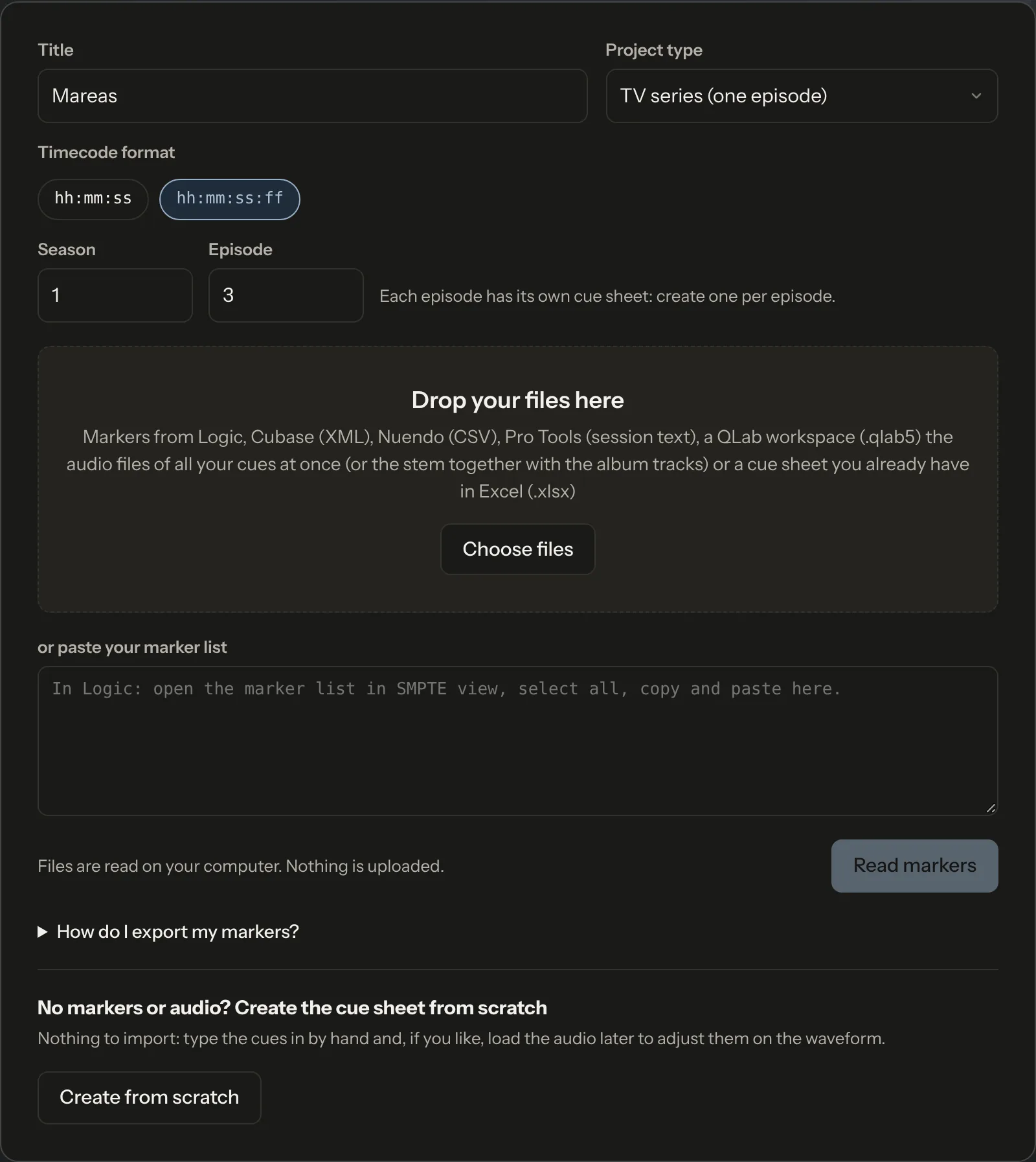
On the start page, type the title and choose the project type. For film, series, documentaries and advertising you also choose the timecode format: with frames (hh:mm:ss:ff) or to the second (hh:mm:ss).
Then drop your files in the box or choose them. The app recognises the format:
- Markers from Logic Pro, Cubase (XML), Nuendo (CSV) or Pro Tools (session text).
- A QLab project (.qlab5), for theatre and dance.
- The audio of every cue at once, or the film's music stem together with the album tracks.
- A cue sheet you already have in Excel (.xlsx), to keep working on it here.
With Logic you can also paste the marker list (in SMPTE view) into the text box. If you have nothing to import, click Create from scratch and type the cues yourself.
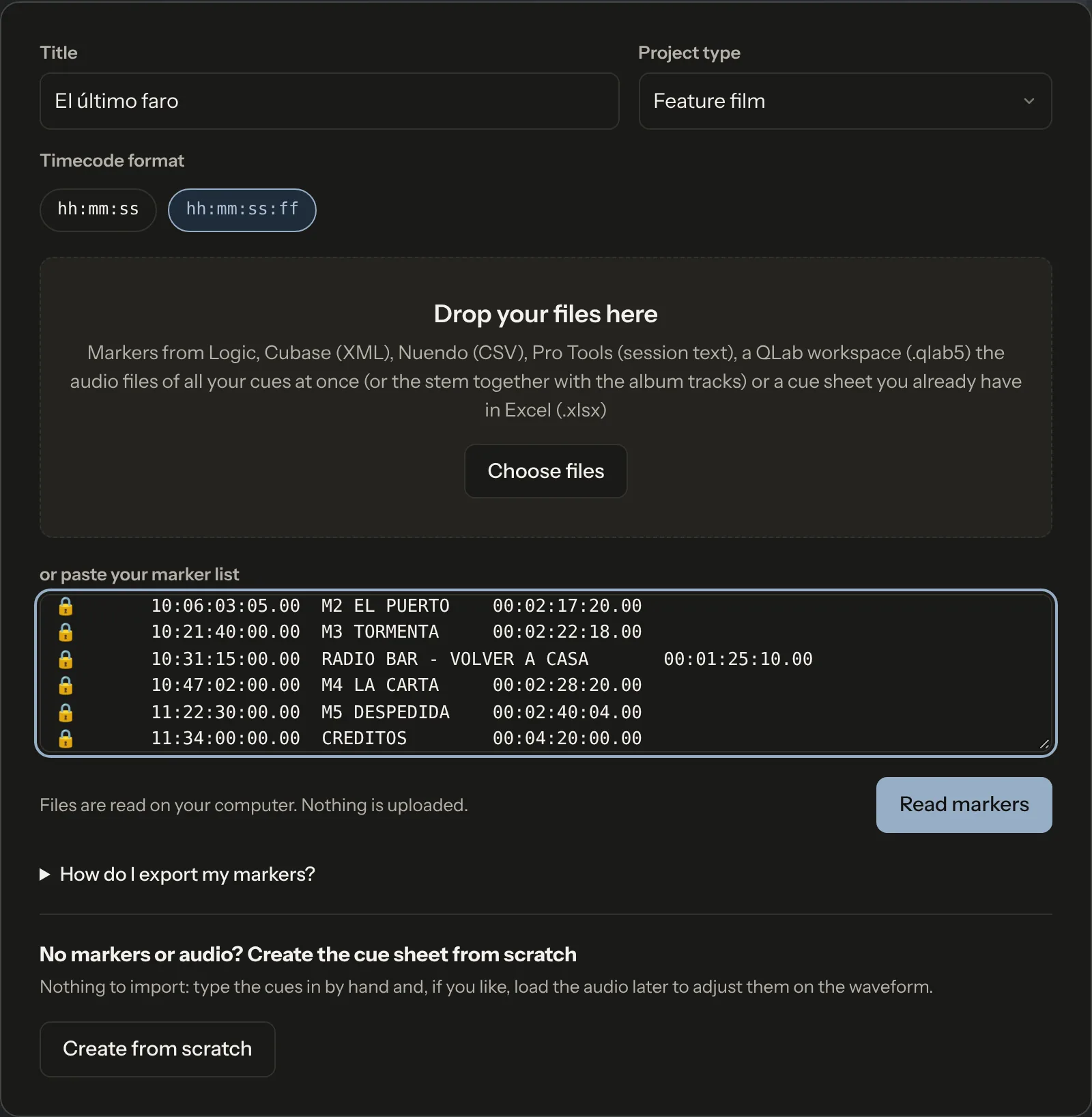
Not sure how to get the markers out of your DAW? Under the box, How do I export my markers? has the steps for each one. Files are read on your computer: nothing is uploaded.
03 Review the import
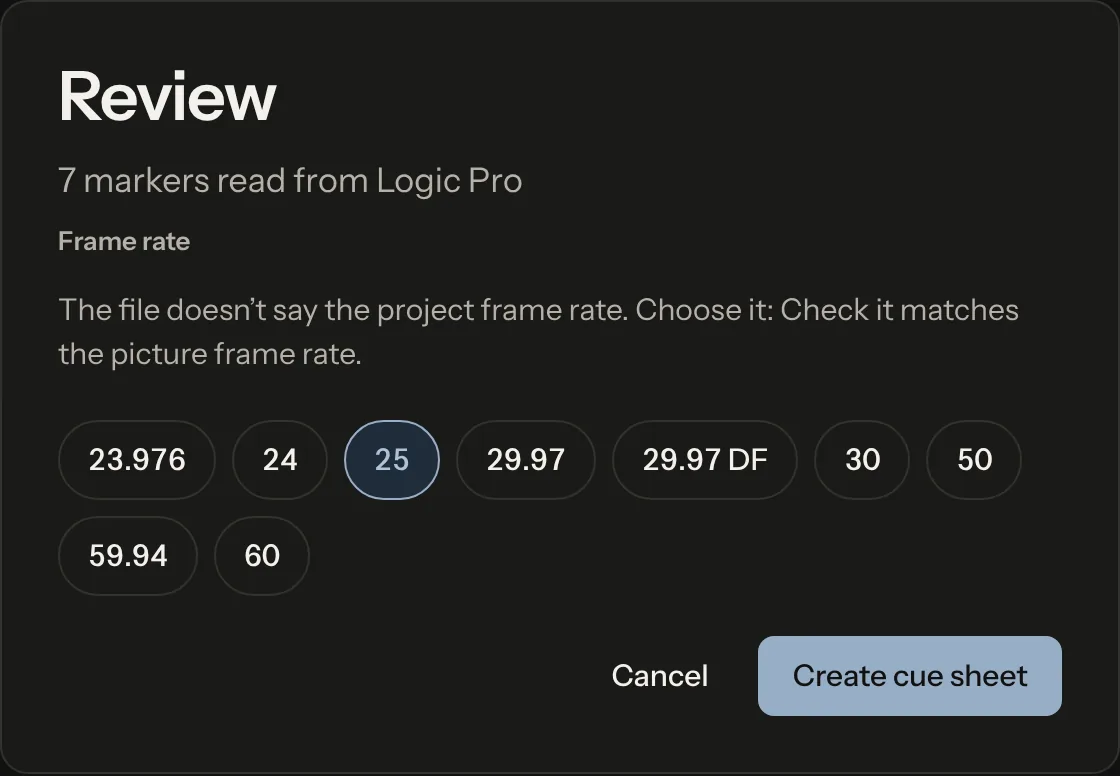
Before creating the cue sheet, the app shows you what it has read. If the file does not say the project's frame rate, choose it: it must match the picture.
04 The cue table
At the top you see how much music the work has in total and how much of each class: original score, third-party songs, library…
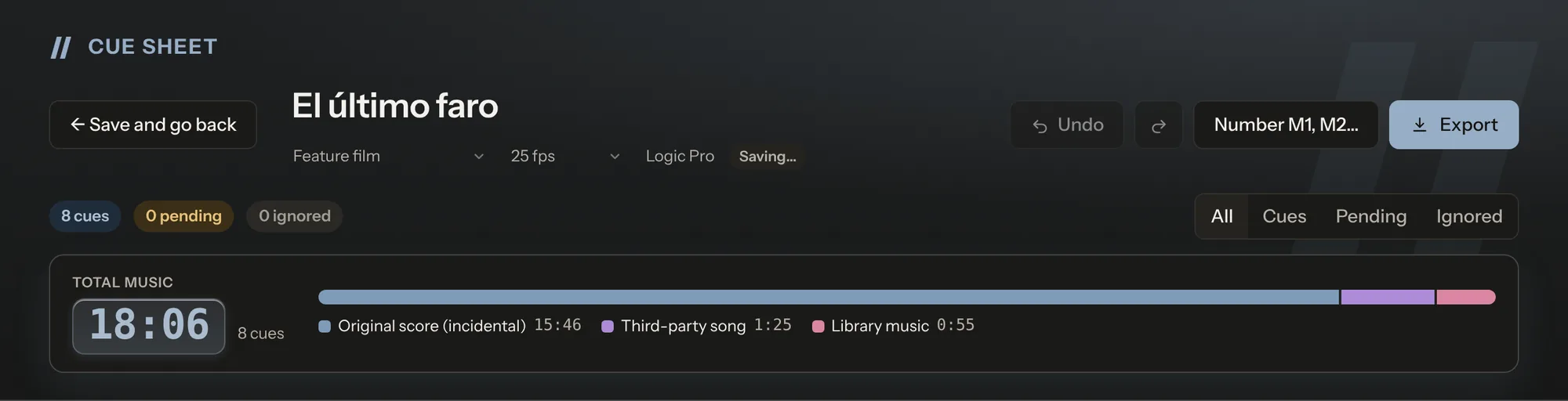
Each row is a cue. Check three columns above all:
- Status: Cue goes on the cue sheet; Pending is still to decide; Ignore is not exported (a marker for a picture change, for example).
- Use: Background (B) if the characters do not hear it, Featured (F) if they do (a radio, a party), Opening (O) or Closing (C) for themes and end credits.
- Music class: original score, original song, third-party song, third-party instrumental or library. The usage codes on the cue sheet come from it.
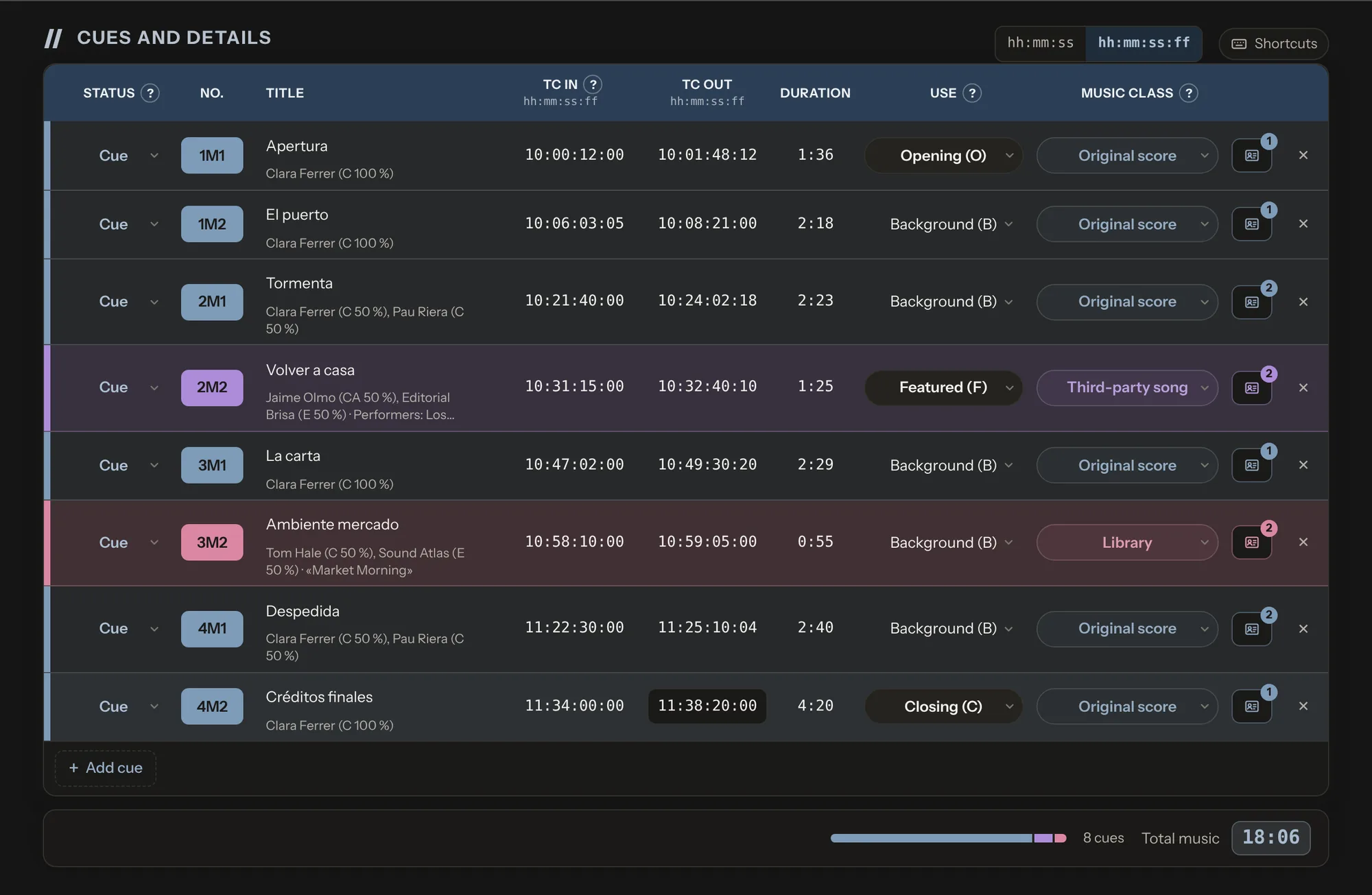
Number M1, M2… numbers all the cues at once. Shortcuts lists the keys to work faster; G applies the generic title to the selected cues.
05 Writers and publishers
Click the card icon at the end of a row to open the cue's details: rights holders with their role, society, member number and share; performers; master owner; ISWC and notes.
The app remembers the people and publishers you have already entered in other cue sheets and offers them as buttons: + Pau Riera adds him with all his details in one click. Add me adds you with your author details.
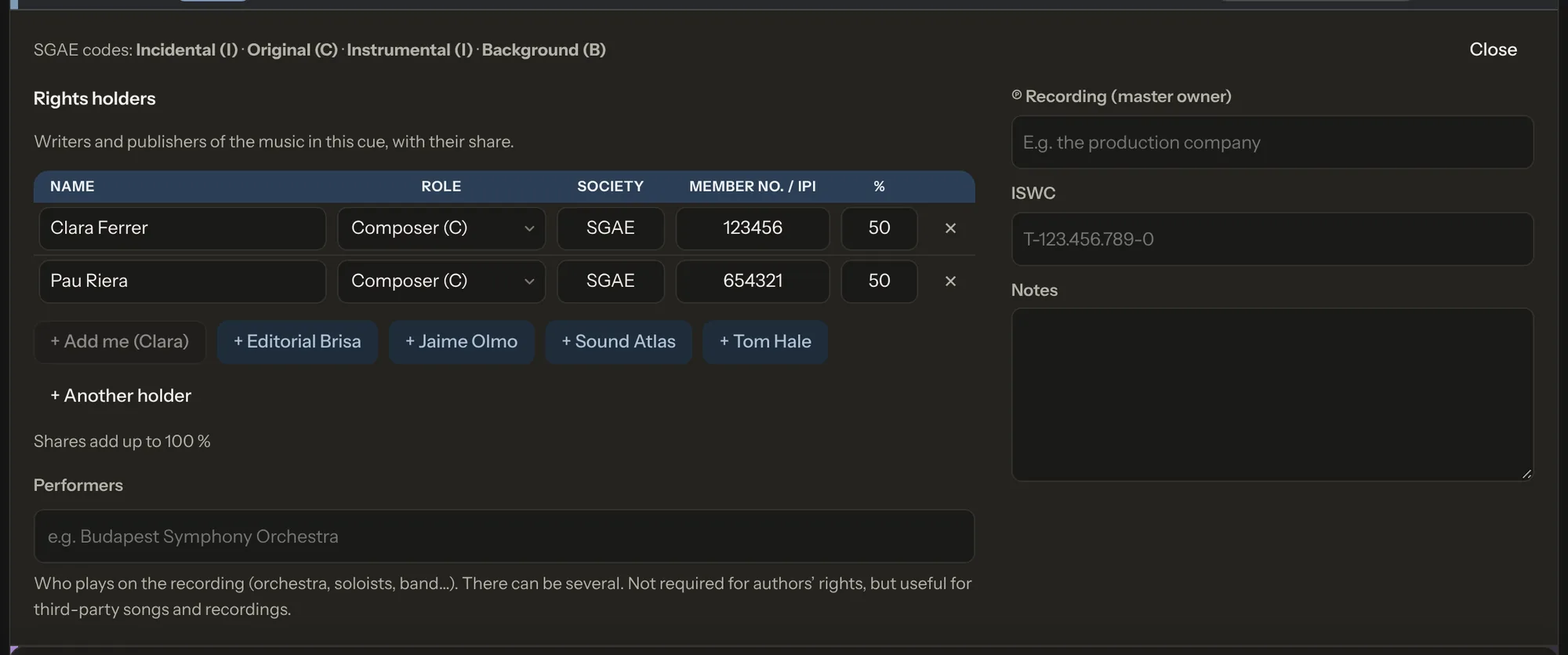
If all the original music is yours, you do not need to fill it in cue by cue: set the default authorship in the production details and every original-score cue without its own holders inherits it.
06 Production details
The cue sheet header: production company, director, total running time, year, release date, publisher and master owner of the original music. Change them with Edit details.

07 Fine-tune on the waveform
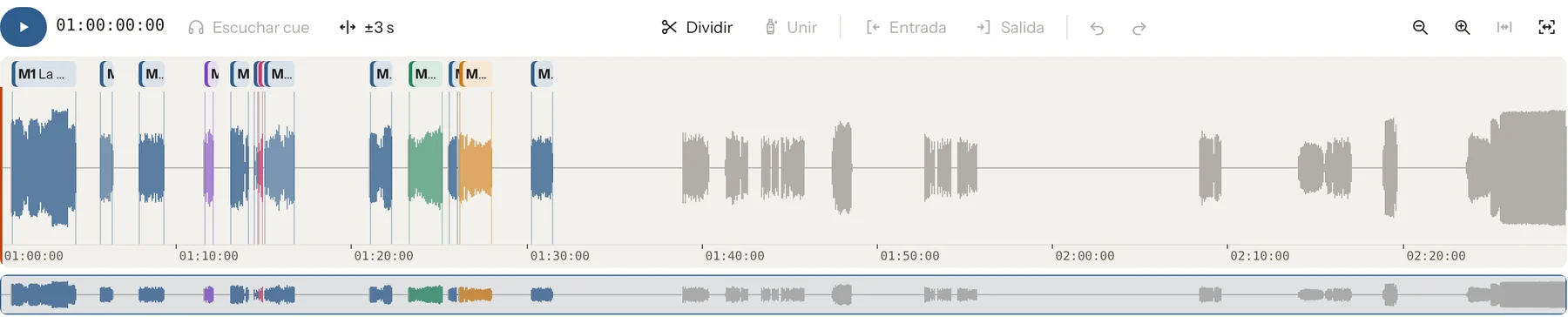
In Waveform and cues you can load the film's audio (the music stem) to see where each cue is, listen to it and adjust its in and out points. You can also split a cue in two or join several. The audio is analysed on your computer and never uploaded.
08 Export
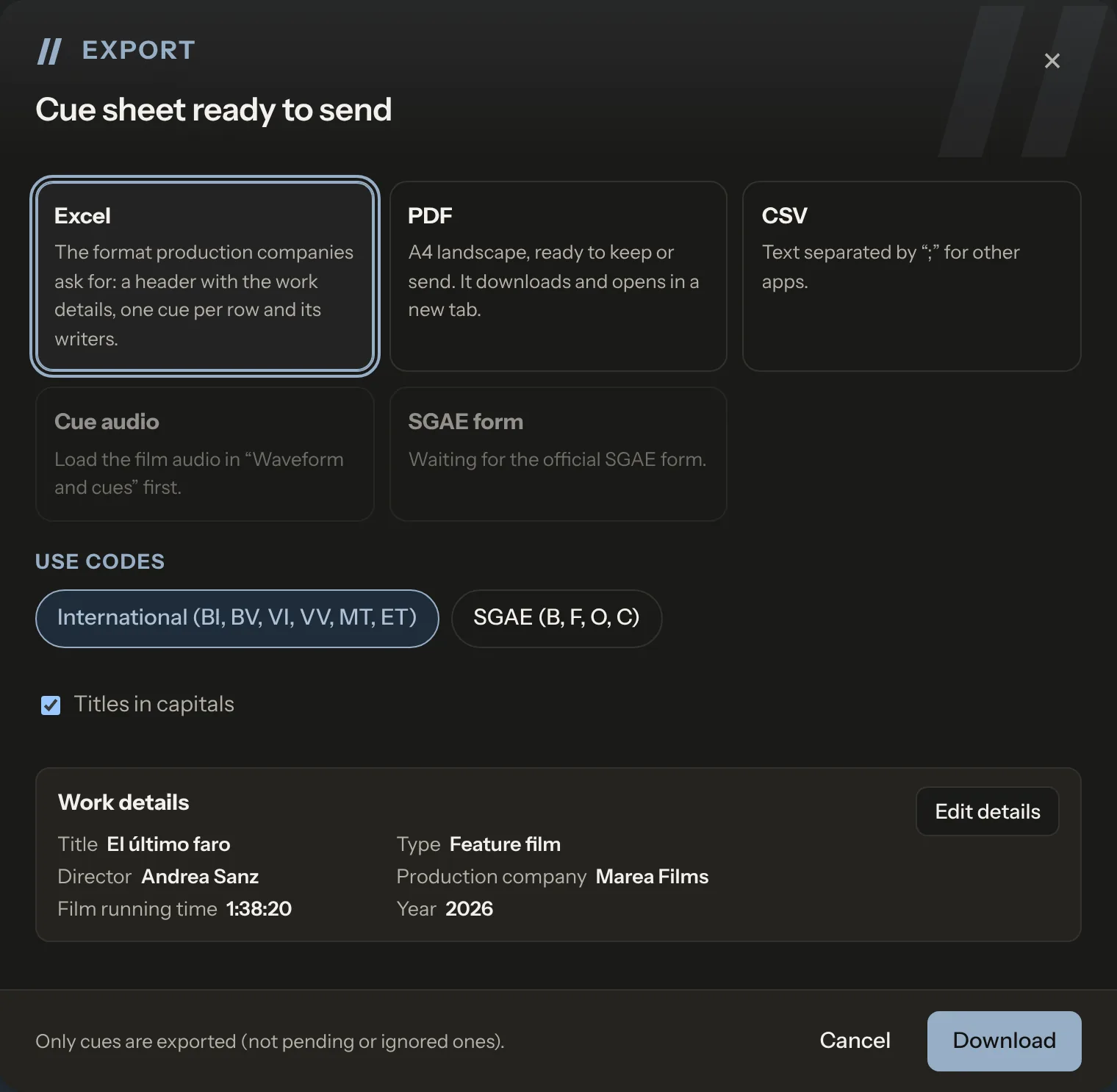
Click Export and choose the format:
- Excel: what production companies ask for, with the production header, one cue per row and its writers.
- PDF: landscape A4, to keep or send.
- CSV: text separated by «;» for other applications.
- Cue audio: if you loaded the film's audio, it cuts out each cue, or joins all the original score into one file to register it as a single work.
You can use the international usage codes (BI, BV, VI…) or the SGAE ones (B, F, O, C). Before you download, the app tells you what is missing: a cue with no writer, shares that do not add up to 100…
09 Series
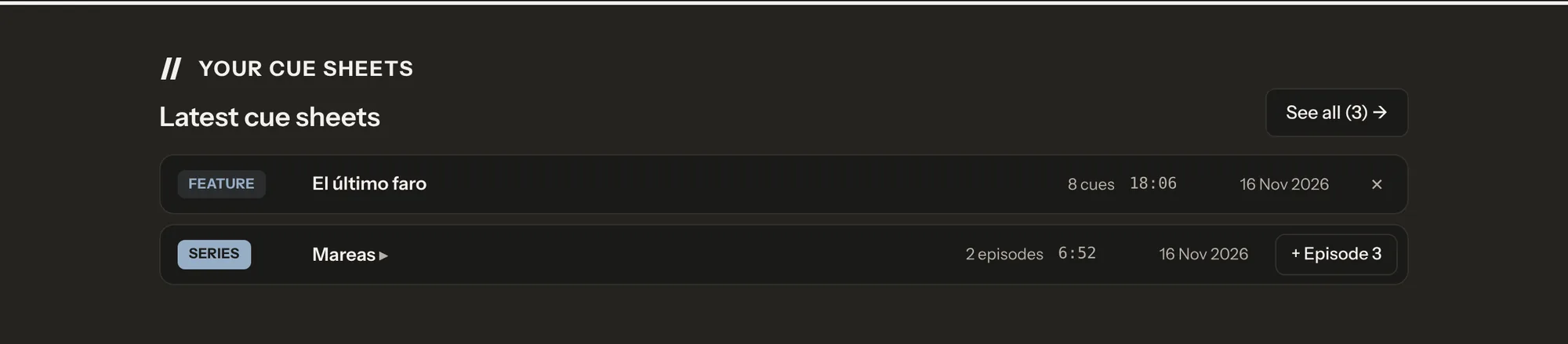
In a series each episode has its own cue sheet. In Your cue sheets episodes are grouped by series, and + Episode 3 opens the next one with the title, season and number filled in. Every episode inherits the series details (production company, default authorship).
10 Theatre, dance and musicals
Stage work has no timecode: drop the QLab project and the app lists the audio files in order, with their length, how many times each one plays and whether it loops. Then you mark what each file is (original music, voice, third-party music or effect) and complete the writers as you would for a film.
11 My details and generic title
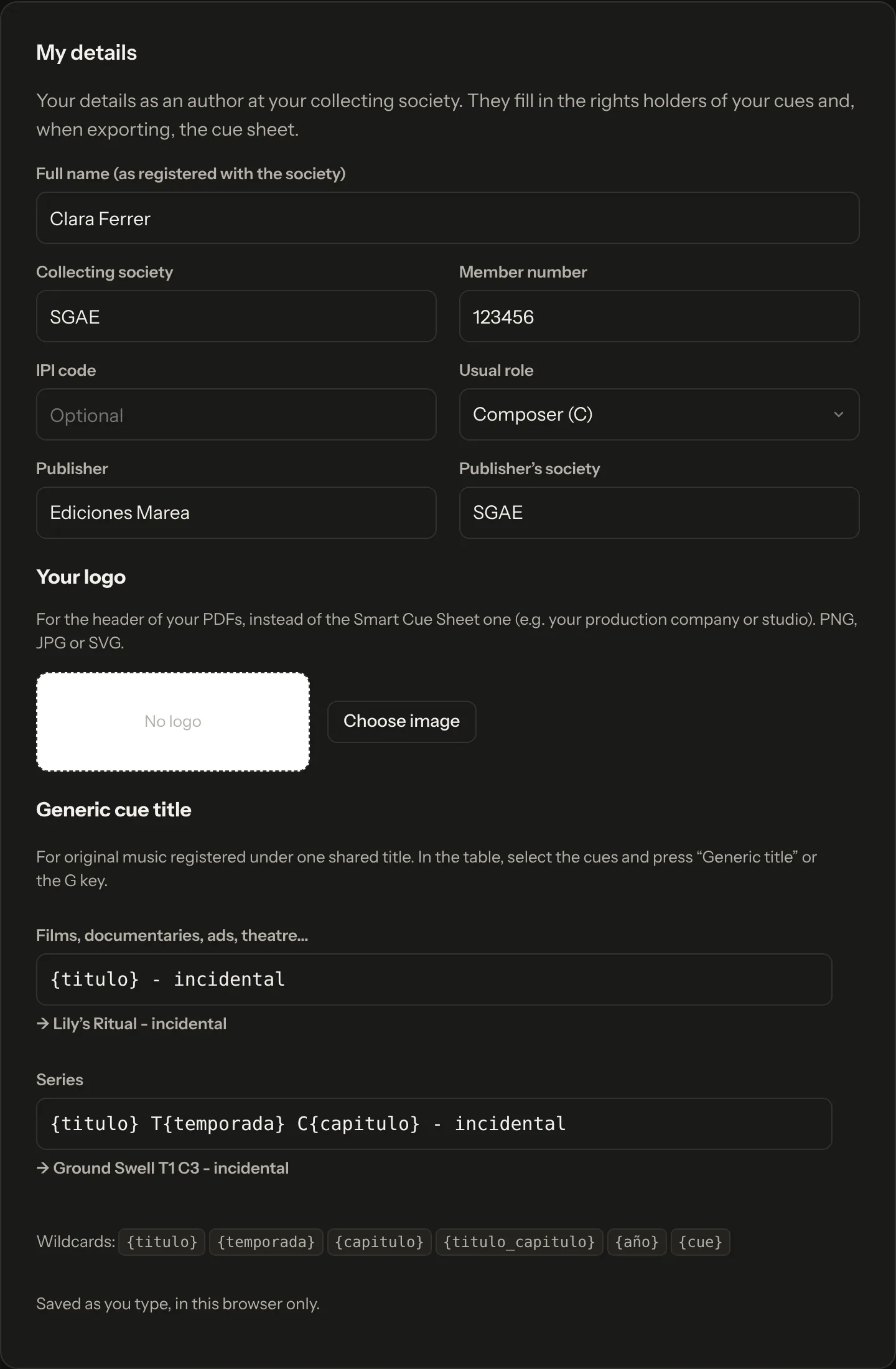
In the menu under your name, My details keeps your author details (name as registered with your society, society, member number, publisher), used by Add me, and your logo for the PDF header.
That is also where the generic title template lives: the shared title the original score is registered under, for example {title} - incidental. In the table, select the cues and press G. Series have their own template with {season} and {episode}. The Spanish names ({titulo}, {temporada}, {capitulo}) work too.
12 Your data
Your audio never leaves your computer. Your cue sheets are stored encrypted on Google Cloud servers in Madrid and no other account can open them. More in Security and in the privacy policy (in Spanish).
Something not working, or missing a feature? Inside the app, go to Feedback and bugs.